Kotlin - Moments API Integration Guide
Overview
The Moments API enables you to present personalized offers to users within your Android application. This guide walks you through the integration steps, from setup to offer rendering and event tracking. so you can deliver high-converting experiences with minimal development effort.
To explore a working example, see the MomentScience Android demo on GitHub
Prerequisites
Before you begin, ensure the following requirements are met:
- API Key: Before you start the integration, you must acquire a unique API key. Follow the instructions provided here to obtain your key.
- Android Version: Target Android SDK 26or higher.
- Add Permission: Add Internet permission in your AndroidManifest.xml
<uses-permission android:name="android.permission.INTERNET" />Integration Steps
The Moments API delivers personalized offer data based on a set of query parameters and request payload values. In this section, you’ll implement a utility function to retrieve and normalize offers for use in your Android UI.
To learn more about request structure, see the Moments API documentation.
Step 1: Fetch Offers
Use the following function to request offers using the Moments API. You can adapt the logic for Retrofit or other HTTP clients as needed.
suspend fun fetchOffers(
    apiKey: String,
    loyaltyBoost: String?,
    creative: String?,
    campaignId: String?,
    isDevelopment: Boolean = false,
    payload: Map<String, String> = emptyMap()
) {
    withContext(Dispatchers.IO) {
        var connection: HttpURLConnection? = null
        try {
            // Build URL with query parameters
            val baseUrl = "https://api.adspostx.com/native/v4/offers.json"
            val urlBuilder = StringBuilder(baseUrl)
            urlBuilder.append("?api_key=").append(URLEncoder.encode(apiKey, "UTF-8"))

            // Add optional parameters only if they are not null
            loyaltyBoost?.let {
                urlBuilder.append("&loyaltyboost=").append(URLEncoder.encode(it, "UTF-8"))
            }
            creative?.let {
                urlBuilder.append("&creative=").append(URLEncoder.encode(it, "UTF-8"))
            }
            campaignId?.let {
                urlBuilder.append("&campaignId=").append(URLEncoder.encode(it, "UTF-8"))
            }

            val url = URL(urlBuilder.toString())

            // Create JSON body
            val bodyJson = JSONObject(payload)
            if (isDevelopment) {
                bodyJson.put("dev", true)
            }
            val requestBody = bodyJson.toString()

            // Configure HttpURLConnection
            connection = url.openConnection() as HttpURLConnection
            connection.apply {
                requestMethod = "POST"
                doOutput = true
                doInput = true
                connectTimeout = 30000 // 30 seconds
                readTimeout = 30000 // 30 seconds
                setRequestProperty("Content-Type", "application/json")
            }

            // Write request body
            connection.outputStream.use { outputStream ->
                outputStream.write(requestBody.toByteArray(Charsets.UTF_8))
                outputStream.flush()
            }

            // Read response
            val responseCode = connection.responseCode
            val inputStream = if (responseCode >= 200 && responseCode < 300) {
                connection.inputStream
            } else {
                connection.errorStream
            }

            val responseBody = inputStream?.use { stream ->
                stream.bufferedReader(Charsets.UTF_8).readText()
            } ?: ""

            if (responseCode >= 200 && responseCode < 300 && responseBody.isNotEmpty()) {
                Log.d("FetchOffers", "Response: $responseBody")
            } else {
                Log.e("FetchOffers", "HTTP $responseCode: ${responseBody.ifEmpty { "Empty response" }}")
            }

        } catch (e: IOException) {
            Log.e("FetchOffers", "Network error: ${e.message}", e)
        } catch (e: Exception) {
            Log.e("FetchOffers", "Unexpected error: ${e.message}", e)
        } finally {
            connection?.disconnect()
        }
    }
}
Use the fetchOffers function to retrieve offers from the Moments API. You can adapt this logic for Retrofit or other HTTP clients as needed
Parameters
Parameter | Type | Description | Required |
|---|---|---|---|
apiKey | String | The API key associated with your MomentScience account. | Yes |
loyaltyboost | String | Sets the loyalty boost level for the offers. Accepts "0", "1", or "2". | No |
creative | String | Determines the creative mode for the offers. Accepts "0" or "1". | No |
campaignId | String | Optional campaign tracking ID. | No |
isDevelopment | String | Enables development mode. Set to "1" for testing environments. | No |
payload | Map<String, String> | Pass any extra data required for offer targeting or tracking as a map of string key-value pairs. | No |
Common payload fields:
Field | Type | Description |
|---|---|---|
adpx_fp | String | A unique identifier for the end user |
pub_user_id | String | A unique, non-PII identifier for the end user. This value links offers to individual users and must remain consistent across sessions and devices. |
placement | String | An attribute that represents the specific page, section, or location where the Offer Unit was triggered |
dev | String | Use "1" to return test offers. |
ua | String | User-Agent String |
Response
A successful response returns a JSON object containing the available offers and related metadata. For detailed response structure and field descriptions, refer to the official Moments API documentation.
Refer OffersApi.kt and OffersResponse.kt for demo app implementation.
Step 2: Build the Offer UI
After retrieving offers from the API, use Jetpack Compose to present them in a scrollable or modal container. This section walks through the structure of both the container and individual offer views.
OfferContainerView, OfferView, OffersViewModel.kt and other components shown below are reference implementations. You are free to implement your own UI components based on your app’s design system and platform conventions.
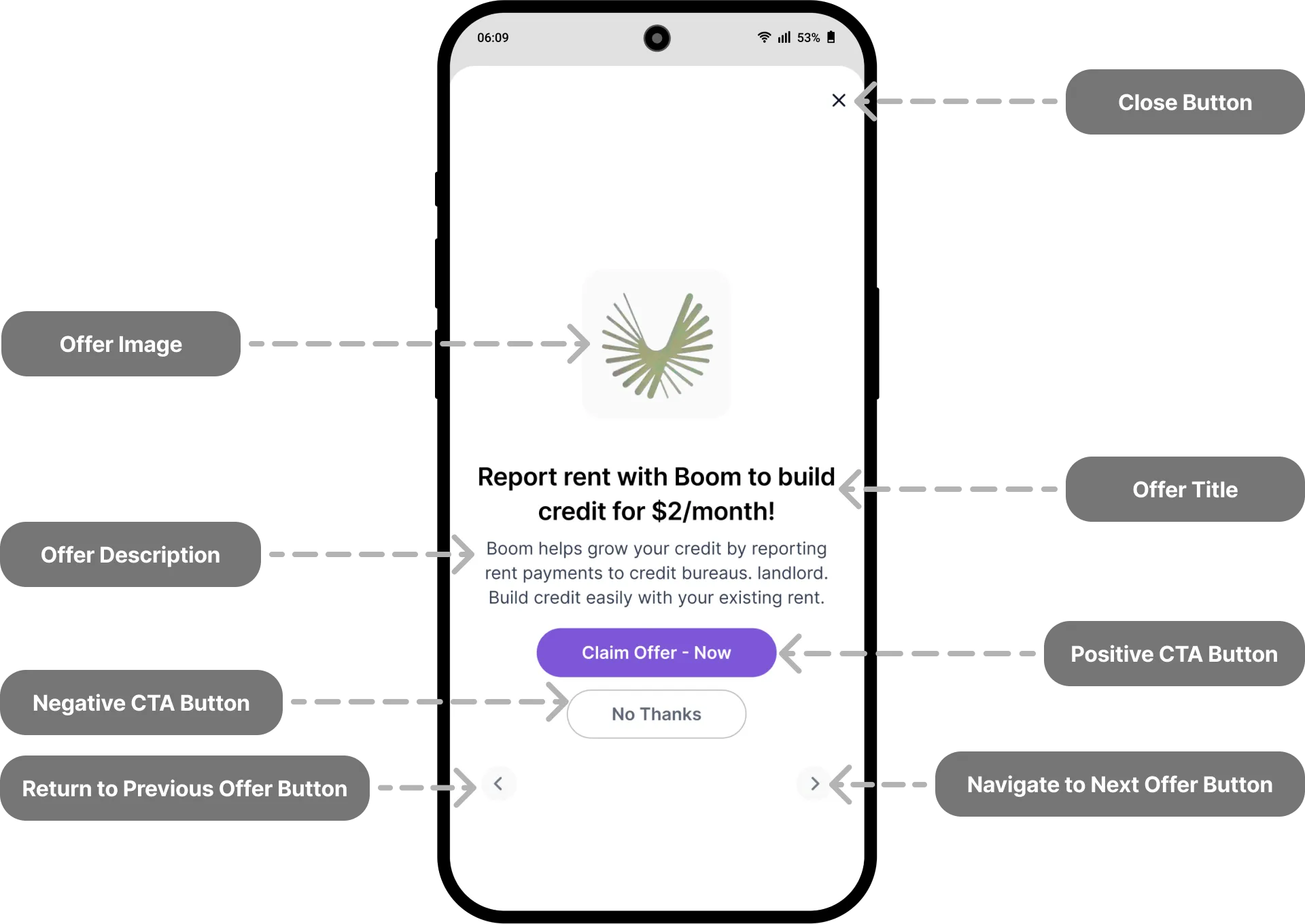
For a detailed explanation of how each field in the offer object is used refer to the Offer Anatomy documentation. This guide will help you understand how to map API fields to UI components and apply dynamic styling correctly.
Display the Offer Container
Use the OfferContainerView composable to display a list of offers with navigation controls and basic styling. This container also handles user actions like close, accept, decline, and pagination.
OfferContainerView(
    offers = apiOffers,
    styles = apiStyles,
    currentOfferIndex = 0,
    onClose = { viewModel.dismissOffers() },
    onPositiveClick = { offer -> viewModel.handlePositiveAction(offer) },
    onNegativeClick = { offer -> viewModel.handleNegativeAction(offer) },
    onPreviousClick = { viewModel.showPreviousOffer() },
    onNextClick = { viewModel.showNextOffer() }
)
This container UI handles:
- Loading and error states
- Modal or embedded offer presentation
- Navigation across multiple offers
- Action tracking for positive CTA tap, negative CTA tap, and close CTA tap.
See OfferContainerView.kt and OffersViewModel.kt for full implementation examples.
Render Individual Offer
Each offer is displayed using the OfferView composable, which presents offer details such as title, image, description, and call-to-action buttons with dynamic styling. The business logic and state for the offer presentation are managed by the OffersViewModel class, following the MVVM pattern.
OfferView(
    offer = Offer(
        title = "Special Offer",
        description = "Limited time discount!",
        image = "https://example.com/image.jpg",
        ctaYes = "Claim Now",
        ctaNo = "Maybe Later"
    ),
    styles = apiStyles,
    onPositiveClick = { handlePositiveAction() },
    onNegativeClick = { handleNegativeAction() }
)
For advanced usage and dynamic styling, refer to OfferView.kt.
If you prefer to use your own layout, styling, or framework-specific widgets, you can:
- Parse the offer response manually.
- Use the Offer Anatomy documentation to map fields like title, image, cta_yes, etc.
- Apply any visual styling or logic defined in your own architecture.
This approach gives you full control over the user experience, while still integrating with the core Moments API logic.
Step 3. Track User Interactions
To monitor engagement and optimize performance, fire event beacons at key user interaction points. The sendGetRequest function handles sending these tracking beacons.
- Sending Beacon Requests: Use this helper function to send GET requests to the beacon URLs provided in each offer
import java.net.HttpURLConnection
import java.net.URL

fun sendGetRequest(fullUrl: String) {
    val url = URL(fullUrl)
    val connection = url.openConnection() as HttpURLConnection
    try {
        connection.requestMethod = "GET"
        val response = connection.inputStream.bufferedReader().use { it.readText() }
        println("Response Body: $response")
    } catch (e: Exception) {
        e.printStackTrace()
    } finally {
        connection.disconnect()
    }
}- Firing the Close Beacon: Send the close beacon when the user dismisses the offer container
fun onClose(offer: Offer) {
    offer.beacons?.close?.let { url ->
        sendGetRequest(url)
    }
    // Additional cleanup or UI logic
}- Firing the “No Thanks” Beacon: Track when a user explicitly rejects an offer
fun onNegativeClick(offer: Offer) {
    offer.beacons?.noThanksClick?.let { url ->
        sendGetRequest(url)
    }
    // Handle navigation or dismissal
}- Firing Pixel Events on Offer Display: Call these tracking URLs as soon as the offer is shown to the user
fun onOfferDisplayed(offer: Offer) {
    offer.pixel?.let { url ->
        sendGetRequest(url)
    }
    offer.advPixelUrl?.let { url ->
        sendGetRequest(url)
    }
}
See OffersViewModel.kt in the demo app for full examples of how tracking events are integrated into offer flow logic.
Next Steps
We recommend that you go through the Moments API Implementation Checklist to verify your integration. Completing this checklist ensures that all best practices and requirements are met for a successful Moments API deployment.
📢 If you're running into any issues while going through the integration process, feel free to contact us at [email protected]