Implementing Macros
Overview
Macros allow you to pass transaction and customer information into your offer units, creating personalized experiences that improve engagement and conversion rates. This guide explains how to implement macros effectively in your MomentScience integration.
With macros you can:
- Personalize offers with customer information
- Confirm completed transactions to build trust
- Improve conversion rates with contextually relevant content
How Macros Work
Macros are placeholder variables enclosed in double curly braces ({{macro_name}}) that are replaced with actual values when the offer is displayed. For these to function properly, you must pass the corresponding data in your payload.
Recommended Macros
Macro | Description | Required in Payload |
|---|---|---|
{{confirmationref}} | Passes the order or transaction confirmation number into the offer unit. This reassures users that their transaction is complete and draws attention to available offers. | confirmationref |
{{firstname}} | Inserts the customer's first name into the offer unit. Personalizing content with a name encourages users to engage with the presented offers. | firstname |
{{payload_attribute}} | Any other custom attribute from your payload can be used as a macro for further personalization of the MomentScience unit. | The specific attribute name |
Use these macros in your theme's text fields to dynamically insert relevant customer or transaction data, improving both user trust and conversion rates.
Implementation Steps
To dynamically render personalized content in your offer units, macro placeholders must be correctly defined and matched with values in your payload. If a value is missing, the placeholder will appear blank.
Step 1: Configure macros in your theme
- Navigate to the Theme Customizer in your MomentScience dashboard.
- In the Header or Lead-In Text fields, insert your macro placeholders using double curly braces {{ }}.
- For example:
- {{firstname}} to insert the customer’s first name
- {{amount}} for transaction amount
- {{confirmationref}} for the order confirmation number
- Use the preview panel to confirm the layout and styling render correctly with the placeholder macros.
The macro key used in the theme must exactly match the key provided in your payload with no spaces or special characters.
Example: use {{firstname}}, not {{ first name }}.
Step 2: Pass customer data in the payload
Add relevant customer and transaction data to your window.AdpxUser object:
window.AdpxUser = {
    email: "[email protected]",
    firstname: "Alex",
    lastname: "Johnson",
    confirmationref: "ORD-12345",
    amount: "$75.50",
    currency: "USD",
    paymenttype: "credit",
    zipcode: "10001",
    country: "US"
};
Use macros sparingly and purposefully, avoid overcrowding messages with variables
Step 3: Test the implementation
Test your implementation with various user scenarios to ensure macros render correctly in all cases.
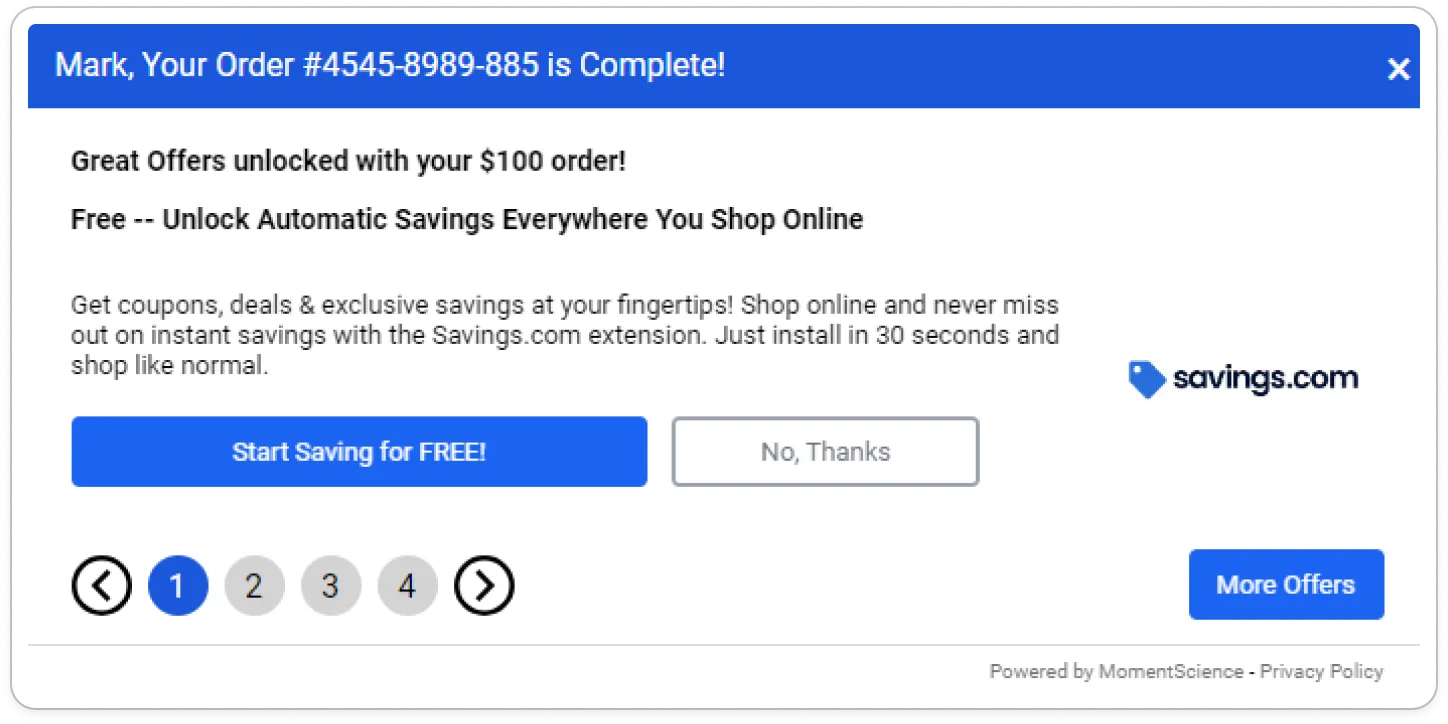
Example Use Cases
Use Case | Message Template | Description |
|---|---|---|
Personalized Offer Intro | {{firstname}}, based on your purchase of {{amount}}, we've selected these offers for you. | Tailors offers post-purchase using customer name and order value. |
Offer Recommendations | Based on your purchase of {{amount}}, here are some offers you might like. | Suggests additional offers based on spend amount. |
Order Confirmation | Thank you, {{firstname}}! Your order #{{confirmationref}} is confirmed. | Confirms successful transactions with personalized details. |
Loyalty Enrollment | Welcome, {{firstname}}! You've earned your first reward with order #{{confirmationref}}. | Welcomes new loyalty members and acknowledges their first reward. |
Localized Promotions | Exclusive deals for {{zipcode}}, {{country}} customers. | Displays location-based offers using ZIP code and country. |
Payment Incentives | Thanks for paying with {{paymenttype}}. Enjoy these special offers just for you. | Tailors messages based on the customer’s payment method. |
Transaction Confirmation | Thank you, {{firstname}}! Your order #{{confirmationref}} is confirmed. | Alternate phrasing for standard order confirmation message. |
If you encounter any issues or need support during integration, contact us at [email protected].