Customizing MomentPerks
MomentPerks by MomentScience gives you full control over how your post-purchase offers appear on your Shopify store. From layout to branding and behavior, everything can be configured via the MomentScience Dashboard.
Accessing the MomentScience Dashboard
To customize your MomentPerks settings, you’ll need to access the MomentScience Dashboard. There are two ways to do this:
Option 1: From the Shopify App Page
- Click Open app to launch MomentPerks.
- You will be automatically redirected to the MomentScience Dashboard, already logged in through your Shopify account.
Option 2: From Shopify's Checkout Editor
- In your Shopify admin, go to the Checkout Editor page.
- In the left sidebar, click the Apps icon.
- Select the Added tab to view apps currently installed.
- Click on moment-perks, then choose Manage App.
- You will be redirected to the MomentScience Dashboard, already logged in.
Recommended: Enable Direct Login
Since MomentPerks was installed via Shopify, you didn’t set a password for direct access to the dashboard. To log in directly at app.momentscience.com, follow these steps:
- Log out of your current session (if you're already logged in).
- Click "Lost password?" on the login screen.
- Enter the email address associated with your Shopify store, then click Reset Password.
- Check your inbox for an email from MomentScience Helpdesk [email protected].
- Open the email and click the password reset link.
- Enter and confirm your new password, then click Change Password.
- You can now log in directly to the MomentScience Dashboard using your email and newly created password, no need to go through Shopify.
Configurations
Offer Unit Style
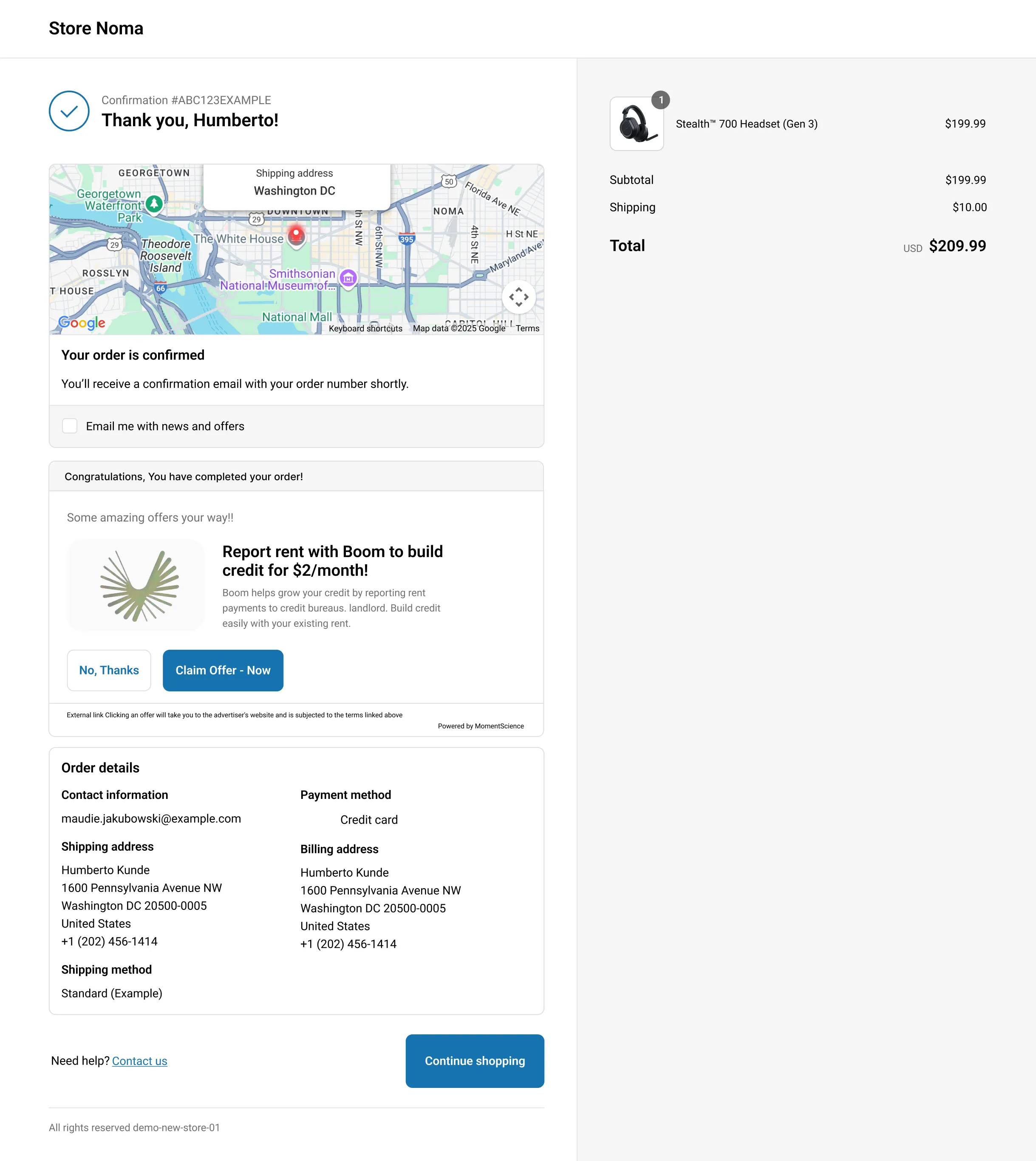
MomentPerks lets you choose how offers are displayed on your Shopify Thank You or Order Status page. You can choose between a Single Offer Unit (SOU) or a Multi Offer Unit (MOU) layout. This setting can be updated from the MomentScience Dashboard.
Single Offer Unit
In this mode, Offers are shown one at a time in the same layout. The user can either accept or skip the offer to view the next one. This format provides a focused, step-by-step experience.
- Default mode enabled for all merchants
- Users can navigate between offers using the progress bar or by clicking “No Thanks” to view the next available offer.
- You can control how many offers are shown from the MomentScience settings
To ensure you're using Single Offer Unit:
- Scroll down to Show Multi Offer Unit.
- Make sure the toggle is disabled.
- Click Save Configuration, then click Confirm.
Multi Offer Unit
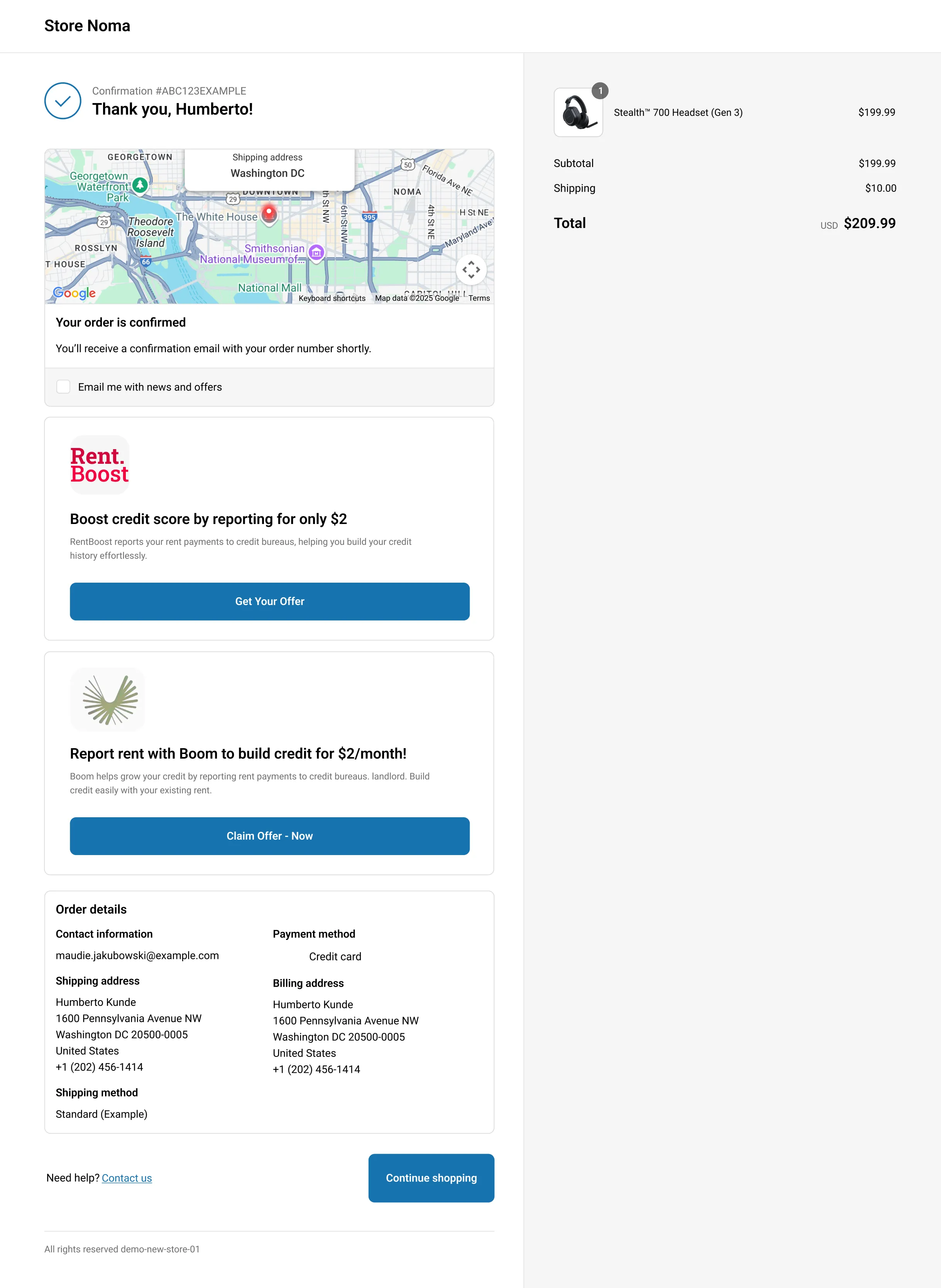
Multi Offer Unit displays multiple offers at once, each in its own tile, stacked vertically. This is ideal if you want to give users more choices upfront.
- Offers are shown simultaneously
- Number of offers displayed can be configured
- Each offer appears in a separate tile layout
To enable Multi Offer Unit:
- Scroll down to Show Multi Offer Unit.
- Toggle it on.
- Click Save Configuration, then click Confirm in the popup.
- Wait up to 10 minutes for the changes to reflect in your Shopify store.
Changing Number of Offers
You can control how many offers appear in each unit from the dashboard.
To update the number of offers:
- Locate the Number of Offers dropdown.
- Select how many offers you want to display per unit.
If you’ve added multiple MomentPerks blocks to your page, this setting applies to each block individually.
Test Mode
Test Mode allows you to preview offers without tracking impressions or clicks, perfect for testing.
To enable/disable Test Mode:
- Toggle Test Mode on or off as needed.
Show Offer Unit
Use this setting to activate or deactivate MomentPerks for your Shopify store without uninstalling the app.
To toggle offer visibility:
- Find the Show Offer Unit toggle.
- Enable to show MomentPerks on your Thank You or Order Status page. Disable to hide it.
Customization Options
MomentPerks by MomentScience gives you full control over how your post-purchase offers appear on your Shopify Thank You and Order Status pages. You can customize layout, text, and appearance for each page independently using the MomentScience Dashboard.
How Themes Work
When you install MomentPerks, two themes are automatically created in your account:
- Thank You Theme: Controls how offers appear on the Shopify Thank You page.
- Order Status Theme: Controls how offers appear when customers revisit the Order Status page.
You can customize each theme independently from the Customize Theme page in your MomentScience Dashboard.
Header and Footer Settings
To further customize the header and footer of your offer unit:
- Ensure you are on the Customize Theme tab.
- Use the Theme dropdown to select either Thank You or Order Status.
- Open the Header and Footer section.
- Adjust the settings, then click Save button.
Setting | Description | Applies To | Recommendation |
|---|---|---|---|
Header Text | Displays as the main heading of the offer unit. Use this to introduce or label the offer block. | Single Offer Unit only | Max ~50 characters |
Lead-in Text | A short line of text shown above the offer description. Useful for contextual messaging or soft framing. | Single Offer Unit only | Max ~50 characters |
Lead-in Alignment | Choose how the lead-in text is aligned: Left, Center, or Right. | Single Offer Unit only | — |
Disclaimer Text | Custom text that appears at the bottom of the offer unit. Ideal for terms, disclaimers, or disclosures. | Single Offer Unit only | Max ~50 characters |
Show Branding | Toggle to display a small “Powered by MomentScience” label at the bottom of the offer unit. | Single Offer Unit only | On/Off toggle |
Offer Text Settings
To customize how your offer content appears visually:
- Ensure you are on the Customize Theme tab.
- Use the Theme dropdown to select either Thank You or Order Status.
- Go to the Offer Text section.
- Adjust the settings, then click Save button.
Setting | Description |
|---|---|
Show Offer Image | Enable this setting to display the offer's image alongside the text |
Image Placement | Decide where the image appears in the layout: Image on Left (default) or Right. |
Theme Settings
To configure theme-related appearance and behavior:
- Ensure you are on the Customize Theme tab.
- Use the Theme dropdown to select either Thank You or Order Status.
- Scroll to the Theme Settings section.
- Adjust the settings, then click Save.
Setting | Description | Applies To | Options / Notes |
|---|---|---|---|
Fixed Progress Bar | Displays a progress bar beneath the offer, guiding users through multiple offers. | Single Offer Unit (SOU) | On/Off toggle |
Progress Bar Type | Controls the style of the progress indicator (only visible if Fixed Progress Bar is enabled). | Single Offer Unit (SOU) | Numbers (1, 2, 3) or Dots (● ● ●) |
Button Order | Controls which CTA button appears first. | Single Offer Unit (SOU) | Positive CTA First (default) or Negative CTA First |
Show Disclaimer | Toggles the visibility of the disclaimer text from the Header and Footer section. | Single Offer Unit (SOU) | On/Off toggle |
Shopify Settings
You can also manage Shopify-related configuration through the Shopify Settings tab in the dashboard.
Changing Your PayPal Email
You can update the PayPal email address where your payouts are sent. By default, this is set to your Shopify store email.
How to Change It:
- From the sidebar, click Integration → Moments, then select the Shopify Settings tab.
- Locate the PayPal E-Mail section.
- Update the email address shown in the input box.
- Click Save to apply your changes.
Make sure the email you provide is linked to a valid PayPal account to avoid payout delays.
Payouts are processed 60 days after the end of each activity month. For example, earnings from January are paid on or before March 31st.
Removing the MomentPerks Integration
If you no longer wish to use MomentPerks on your Shopify store, you can remove the integration.
This action is permanent and cannot be undone.
How to Remove the App:
- Scroll down to the Remove App section.
- Click Remove.
- Confirm the action when prompted.
Once removed, MomentPerks will no longer display offers on your Thank You page, and the app will be disconnected from your Shopify store.
📢 If you're running into any issues while going through the integration process, feel free to contact us at [email protected]